Showing posts with label Leslie Zanotti. Show all posts

Monday, April 8, 2019

Leslie's Findings: iSpring Flip 9 eBook Creation


Leslie's Findings iSpring Flip 9 eBook Creation Banner


iSpring Flip 9, a newly-released feature of iSpring Suite 9, can quickly turn a PDF, Word, or Powerpoint file into an eBook. 

You can display one or two pages at one time, show thumbnails for page navigation, display in full screen, and zoom in or zoom out. You can put in hyperlinks to external sites, as well as internal ones, such as a table of contents.

It can be loaded and score complete/incomplete on a learning management system with bookmarking.

iSpring Flip 9 Examples


Following is the web link showing our example of a Word document converted to an eBook with hyperlinks using Flip 9:


If you want to see an example of tracking/scoring progress on an eBook, see below for a screen shot of a Scorm 1.2 score of a Word doc. Note that the Score in the learning management system is NOT a pass/fail score, but the completion of the eBook. For example, in a 10-page eBook, if you have read 5 pages, you will show a 50% “Score.”


iSpring Flip 9 is available as part of iSpring Suite 9, or it can also be purchased by itself as a standalone application.  You can learn more about it and even try it for yourself by downloading a free 14-day trial of Suite 9 here https://www.ispringsolutions.com/ispring-flip

About Leslie Zanotti

Leslie Zanotti is the Vice President of Relate Corporation, a well-known Training & Development company specializing in eLearning, media production, and Internet broadcasting.

Need Help?

If you need assistance on your eLearning development projects, seek professional development services including corporate video and audio production, want some management consulting, or just need some help, send us a note on our contact form, e-mail us at connect@relate.com, or call us at 800-428-3708. Thanks for reading!

Monday, May 7, 2018

SCORM Cloud: What Is It & Why Should You Use It?

SCORM Cloud has been our go-to testing environment for LMS deploys into Taleo, Cornerstone (CSOD), Sum Total, SAP, and Plateau, among others.


Why We Use SCORM Cloud


Sometimes implementing eLearning courses into an LMS is time-consuming and yet you get only a few attempts. Using SCORM Cloud makes these few attempts go smoothly.


You can use it at your convenience, and quickly and easily load many different test scenarios.


Essential Features


With SCORM Cloud, you can verify your course runs, scores, and display information like the title and description.


We also use it to test multi-sco implementations, heavy media implementations, and to invite users to test their courses in an LMS environment.


How to Get Started: SCORM Cloud Pricing


Pricing for SCORM Cloud ranges from free to a monthly subscription. Subscription costs increase based on the number of new user registrations you need to accommodate each month.


Here is the official website if you're ready to learn more: https://scorm.com/scorm-solved/scorm-cloud-features/


Need Help?


If you need help with any steps in LMS implementation, contact us today at Relate Corporation. We have over 20 years of solid experience in the training industry and we are confident that we can help make your project a success! To schedule a consultation, call us at 1-800-428-3708, send us an e-mail at connect@relate.com, or fill out our contact form. We'd love to hear from you!


Tuesday, April 17, 2018

Leslie's Findings: Adobe Captivate 2017

This post is the second in my series of blog posts on authoring system findings. My first post dealt with various issues encountered while publishing to an LMS using Articulate Storyline 360. This time, we will look at Adobe Captivate 2017.

The following are findings on publishing in Adobe Captivate and text entry in HTML5.

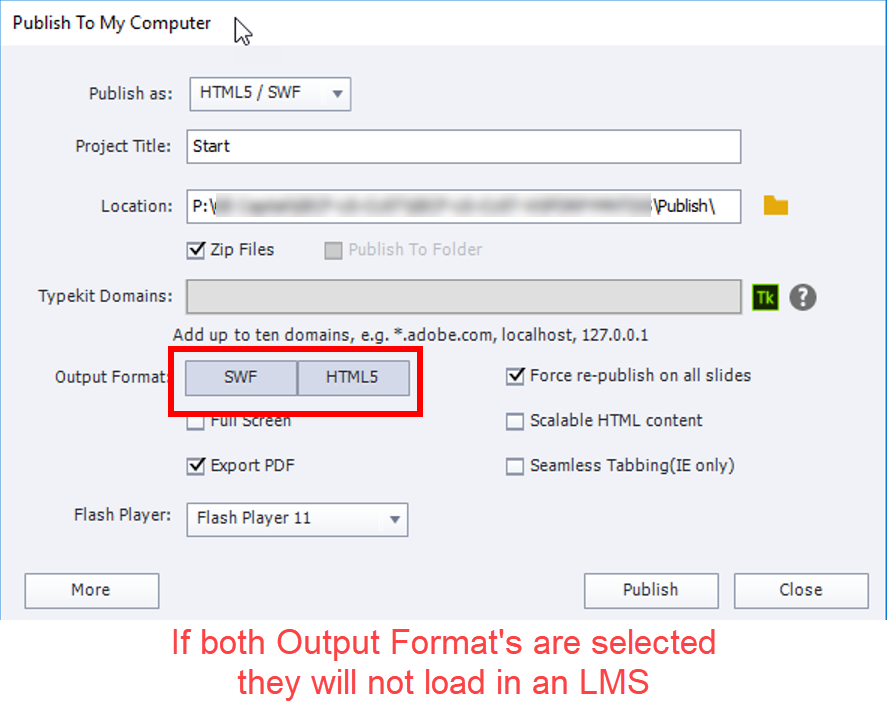
1. Publishing in Adobe Captivate 2017: Choose One Output Format


The Publish window seemingly allows you to select both Flash and HTML5 output at the same time. However, when I tried doing this, the published content didn’t load using Scorm Cloud or Litmos.

The publish has to be only for Flash, or only for HTML5 to load successfully. The screenshot below shows publish options in Adobe Captivate:


Here is the SCORM Cloud error message you will see if you attempt to publish for Flash and HTML5 simultaneously:

Scorm Cloud Error Publishing From Adobe Captivate 2017

2. Text Entry with a Tab Key: Tablet Hard Keyboard Only


From my experience using a Samsung Galaxy Note Pro Android tablet, I've found that text entry with a tab key does not work in HTML5 on tablet soft keyboards. It doesn't work on desktop, either.

However, it did work when using a physical keyboard for the tablet.

This is because seamless tabbing, where the selected area moves throughout the screen and is not focused on the text entry object, is turned on for the tablet soft keyboard and for the desktop.

Still Having Trouble with Authoring Tools? We Can Help!


Thanks for reading — I hope my Captivate findings were useful to you. Keep an eye on this post and the Relate blog for updates, as I will be posting more helpful findings.

If you're struggling with any steps in LMS implementation, contact us today at Relate Corporation. With our 20+ years of solid experience in the training industry, we can assist in making your project a success. Feel free to call us at 1-800-428-3708, send us an e-mail at connect@relate.com, or fill out our contact form. We'd love to hear from you!

Tuesday, April 10, 2018

Some Findings Using Articulate Storyline 360 when Publishing to an LMS

I've been working with learning management systems for over 20 years. I have run into both the good and the bad of an LMS. In this series of blog posts, I will discuss some of my findings for current authoring systems. In this blog, we will talk about Articulate Storyline 360.

Publishing to LMS


This section was updated with a new subsection on 5/1/2018.

Publish Format: Flash or HTML?


The LMS environment used was Scorm Cloud and Cornerstone (CSOD).

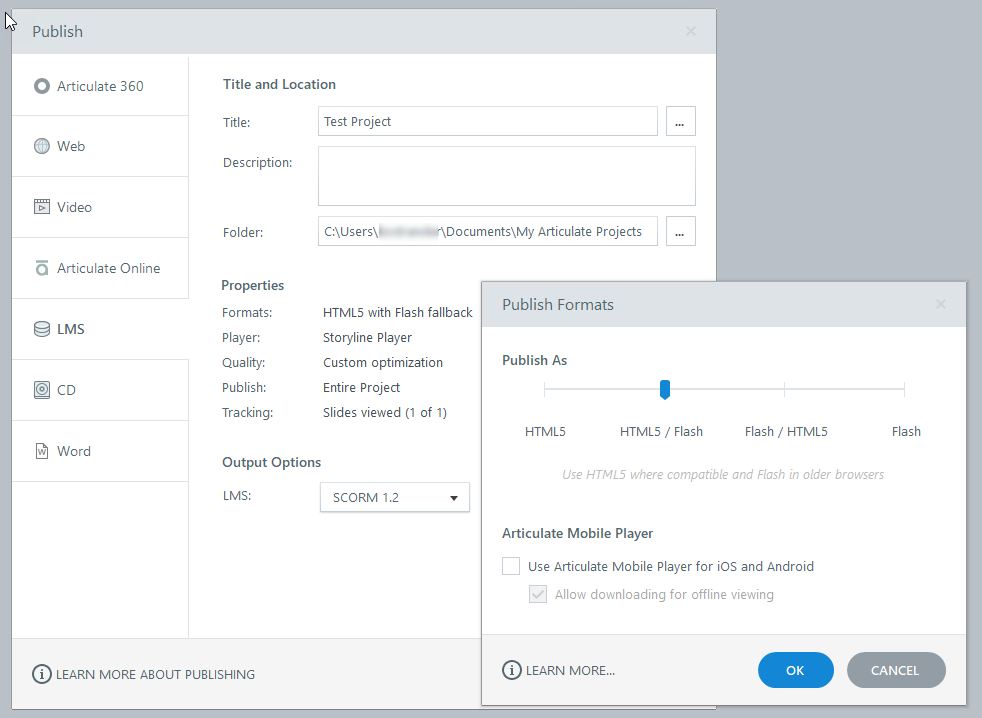
You can publish for Flash with HTML5 fallback, or HTML5 with Flash fallback and both ways will load successfully in an LMS:

publishing flash and html5

Both publish methods work superficially. Once in a while a trigger will not work with this combination. When a trigger doesn’t work, it isn’t the same trigger type.

The solution is to publish for only one: Flash or HTML5.

Workaround for the "Jump to the Back" Issue


LMS environment used was Scorm Cloud, Litmos, iSpring Learn and Cornerstone (CSOD).

Using Internet Explorer, when the first slide is an .mp4 video, the course will start in the front on your desktop in your browser, but on an automatic jump to the next slide, it will wind up in the back on the desktop in your browser.

This issue does not occur when using Chrome or Firefox.

Below is a web link showing the .mp4 as the first slide. Note that because it is not in the LMS, you will not see the jump to the back.

www.relatecasts.net/blogsamples/Avinger_MP4Before/story.html

This problem can be fixed by simply putting an extra slide for about .25 of a second in the front with an automatic jump to the next slide.

This web link shows the static slide just before the .mp4:

www.relatecasts.net/blogsamples/Avinger_MP4After/story.html

This is an issue with both Storyline 360 and in this case with the LMS, Cornerstone.

It doesn’t happen with Storyline 360 in Scrom Cloud, Litmos, or iSpring Learn.

Nor does it happen with Captivate 2017 in Scorm Cloud, Litmos, iSpring Learn, or Cornerstone.

This issue used to occur in Captivate, and we had to use the same first slide workaround, but now it is fixed as we use Captivate 2017.

I've also written a separate blog article on my findings in Captivate 2017.


Triggers and Objects when Published for the LMS


As new versions of Storyline 360 are released, triggers and objects that were working may not work.

For example, the trigger for Media Completes was broken in Version 12. It worked in Version 11 and now in Version 13.

For the scroll area in Flash, the mouse scrolling doesn’t work for Internet Explorer 11. Don’t be mislead when it works in preview. It used to work in Storyline 360 Version 10. It no longer works for Version 11, 12, or 13.

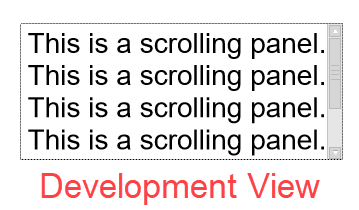
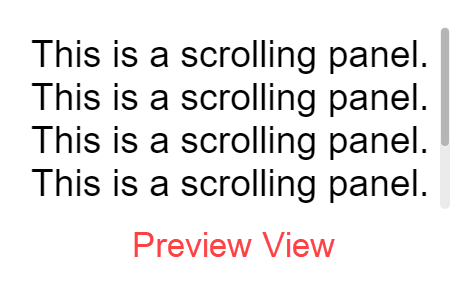
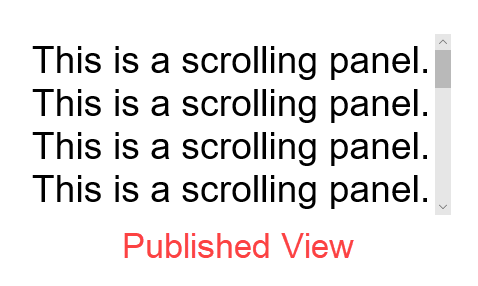
The scroll bar in the scroll area has one look published, another look in preview, and another look in development:

Articulate Storyline 360 Scrollbar Development View

Articulate Storyline 360 Scrollbar Preview View

Articulate Storyline 360 Scrollbar Published View


Graphics


When you export a graphic, in our case a .png, your size will be a few pixels off from the original size. For example, if the original .png was 434x434, when saving this picture in Storyline it changes to 432x432. If you try to do a change picture after exporting this, it will blur.

Converting from Storyline 1 to Articulate Storyline 360


This section was added as an update to this blog article on 4/23/2018.

We needed to make changes to a Storyline 1 .story, using Storyline 360. We had player navigation buttons for Next, Prev. When we converted straight to 360, the navigation buttons no longer displayed, however, the button area was still active.

Two-Step Conversion


So we tried something different – converting from Storyline 1 to Storyline 2, then to Storyline 360. Using this two-step conversion method, the buttons were correctly retained.

Importing instead of Converting


However, to be more efficient, we tried importing to a new 360 project straight from Storyline 1. It worked! We had a 24 slide course, and checking everything, the conversion was good!

Example of a Successful Storyline Conversion


Note: The player buttons for the 360 version are gray, and there is an audio button to differentiate between the two versions.

Here is the link before in Storyline 1:

https://www.relatecasts.net/blogsamples/SL1_CardBuddy/story.html

Here is the link after in Storyline 360:

https://www.relatecasts.net/blogsamples/SL360_CardBuddy/story.html

We believe the conversion was accurate. Feel free to let us know if you see any problems in the 360 version!

Word Bank Quiz Question in Storyline 360


In the conversion we also saw that the Word Bank quiz question no longer worked without the Submit button. We were able to use "drag on" triggers in Storyline 1 and 2, but this currently isn’t the case in 360. (The "drag over" trigger, however, does still work in 360.) This is true in Storyline v3.15.15453.0 and in v3.14 as well.

Need Help with Articulate Storyline or other Tools?


If you need any help with LMS implementations, Relate can help. Feel free to write us at connect@relate.com (you can also message us on our contact form) or call us at 1-800-428-3708.